
Interactive Brokers setup guide
Configure an IBKR Activity Flex Query
This guide shows the exact manual setup needed for Compounding Wealth to import Interactive Brokers activity through Flex reports.
Step 1Create the Activity Flex QueryConfigure the IBKR Activity Flex Query that Compounding Wealth reads.
Target configuration
Create an Activity Flex Query, choose XML, set the period to Last 365 Calendar Days, select all fields in the required sections, and include every account you want to track. Do not share your account numbers or the generated query ID in support messages.
Before you start
- Log in to Interactive Brokers Account Management.
- Open Performance & Reports, then Flex Queries.
- Choose any query name that will help you recognize this report later.
Required sections
Select all fields in every section. For sections that show options, enable the options listed here before selecting all fields.
| Section | Options to enable |
|---|---|
| CFD Charges | None |
| Cash Report | Currency Breakout |
| Cash Transactions | DividendsPayment in Lieu of DividendsWithholding Tax871(m) WithholdingAdvisor FeesOther FeesOther IncomeDeposits & WithdrawalsCarbon CreditsBill PayBroker Interest PaidBroker Interest ReceivedBroker FeesBond Interest PaidBond Interest ReceivedPrice AdjustmentsCommission AdjustmentsDetail |
| Change in Dividend Accruals | Detail |
| Commission Details | None |
| Corporate Actions | SummaryDetail |
| Financial Instrument Information | None |
| Forex Balances | Summary |
| Forex P/L Details | Transaction |
| Incoming/Outgoing Trade Transfers | Trade Transfers |
| Interest Accruals | None |
| Open Dividend Accruals | None |
| Open Positions | Summary |
| Statement of Funds | Currency BreakoutInclude Starting and Ending Balances |
| Trades | OrderExecution |
| Transaction Fees | SummaryDetailExecution |
| Transfers | Transfer |
Delivery configuration
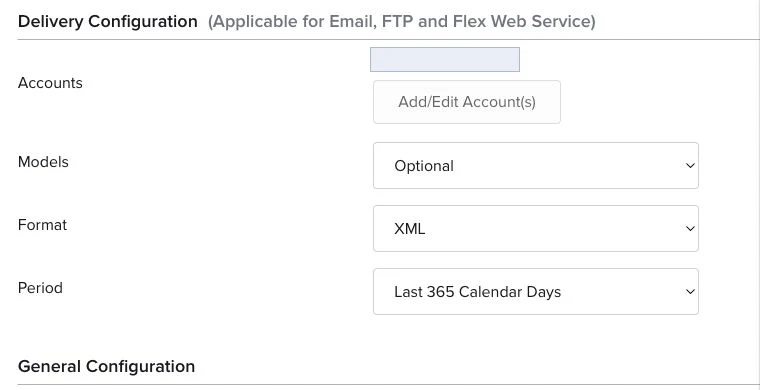
- Accounts
- Select every account you want to track.
- Models
- Leave as Optional.
- Format
- XML
- Period
- Last 365 Calendar Days
General configuration
- Date Format
- yyyy-MM-dd
- Time Format
- HH:mm:ss TimeZone
- Date/Time Separator
' 'single space- Profit and Loss
- Default
- Include Offsetting Trade/Cancel Pairs?
- No
- Include Currency Rates?
- Yes
- Include Audit Trail Fields?
- No
- Display Account Alias in Place of Account ID?
- No
- Breakout by Day?
- No
Step-by-step guide
Open the Flex Queries page
Confirm the page heading is Flex Queries.
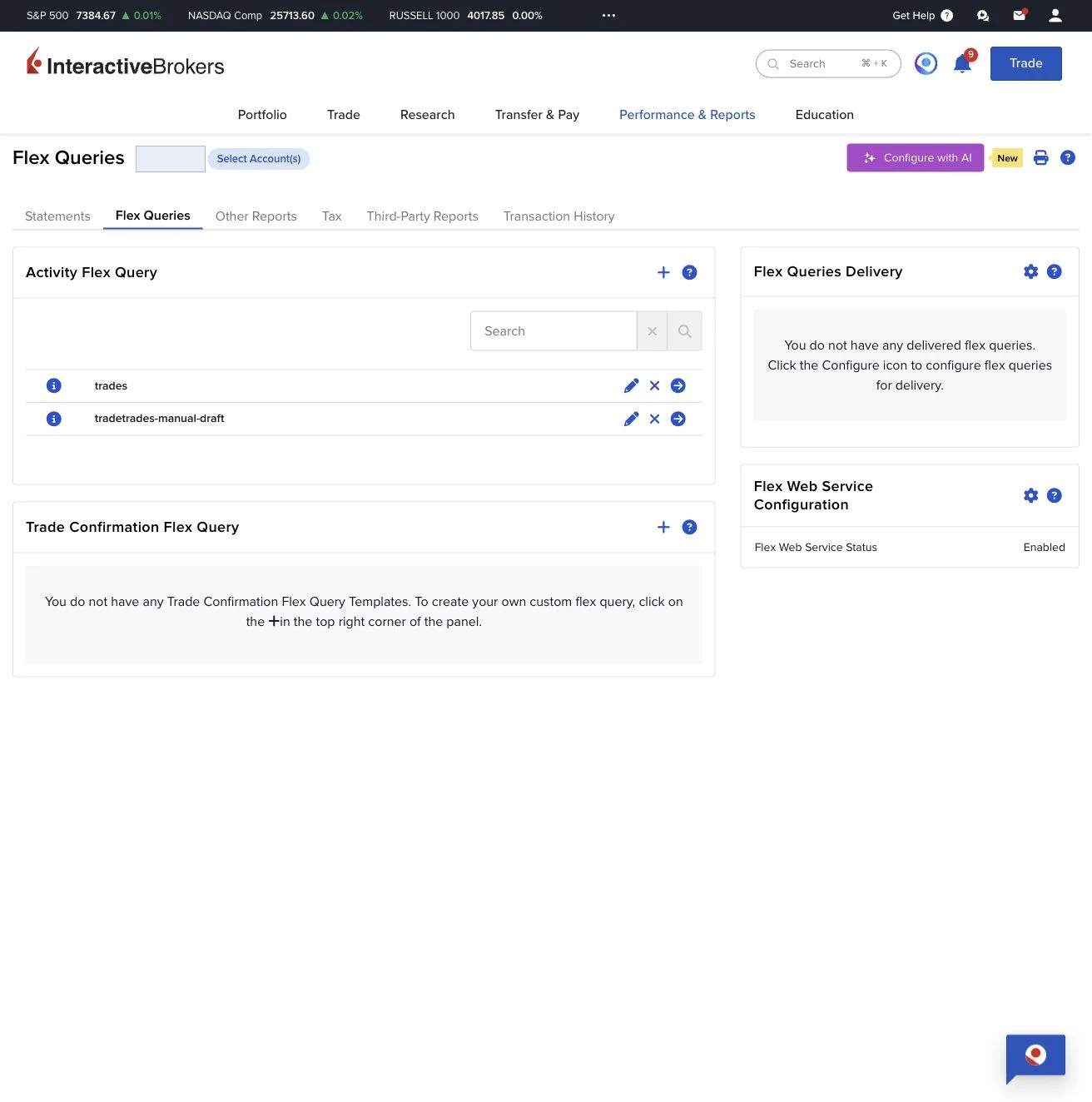
Create an Activity Flex Query
In the Activity Flex Query panel, click the + create button.
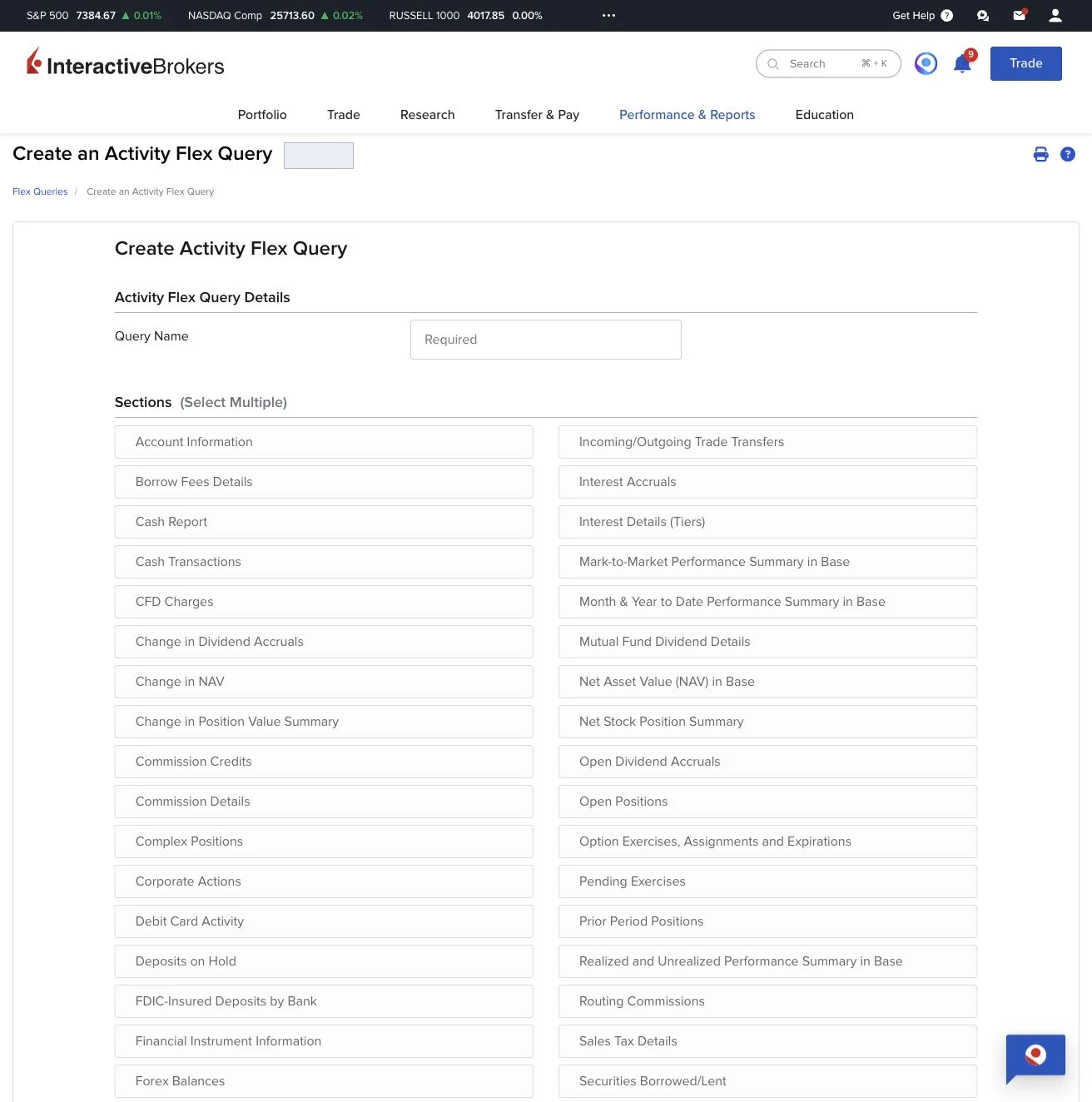
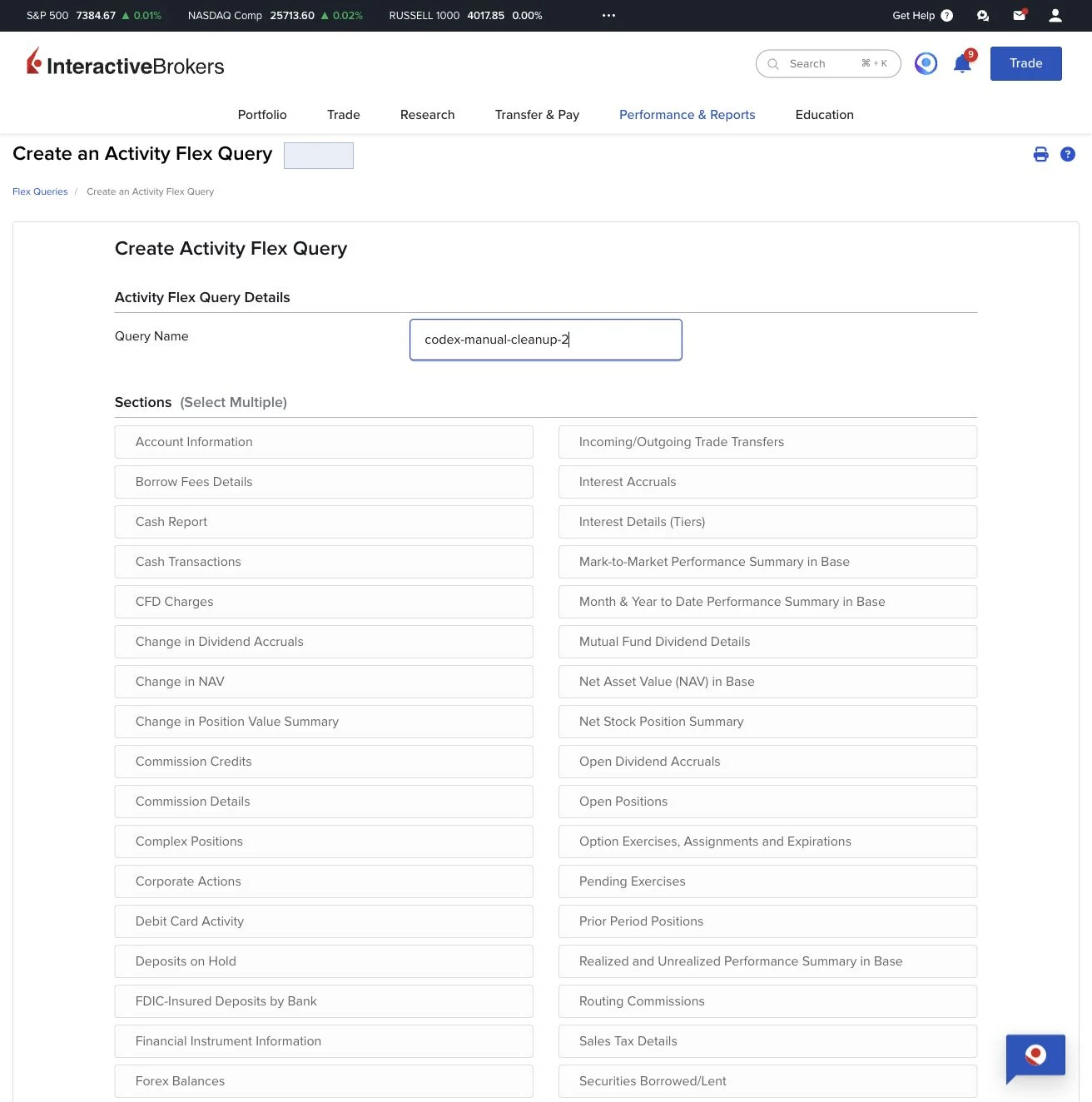
Name the query
Enter any name that will help you recognize the report later.
Configure the required sections
For every section in the table above, open the section, enable the listed options, click Select All for fields, then click the section modal's Save button. After saving, the section tile should appear selected before you move on.
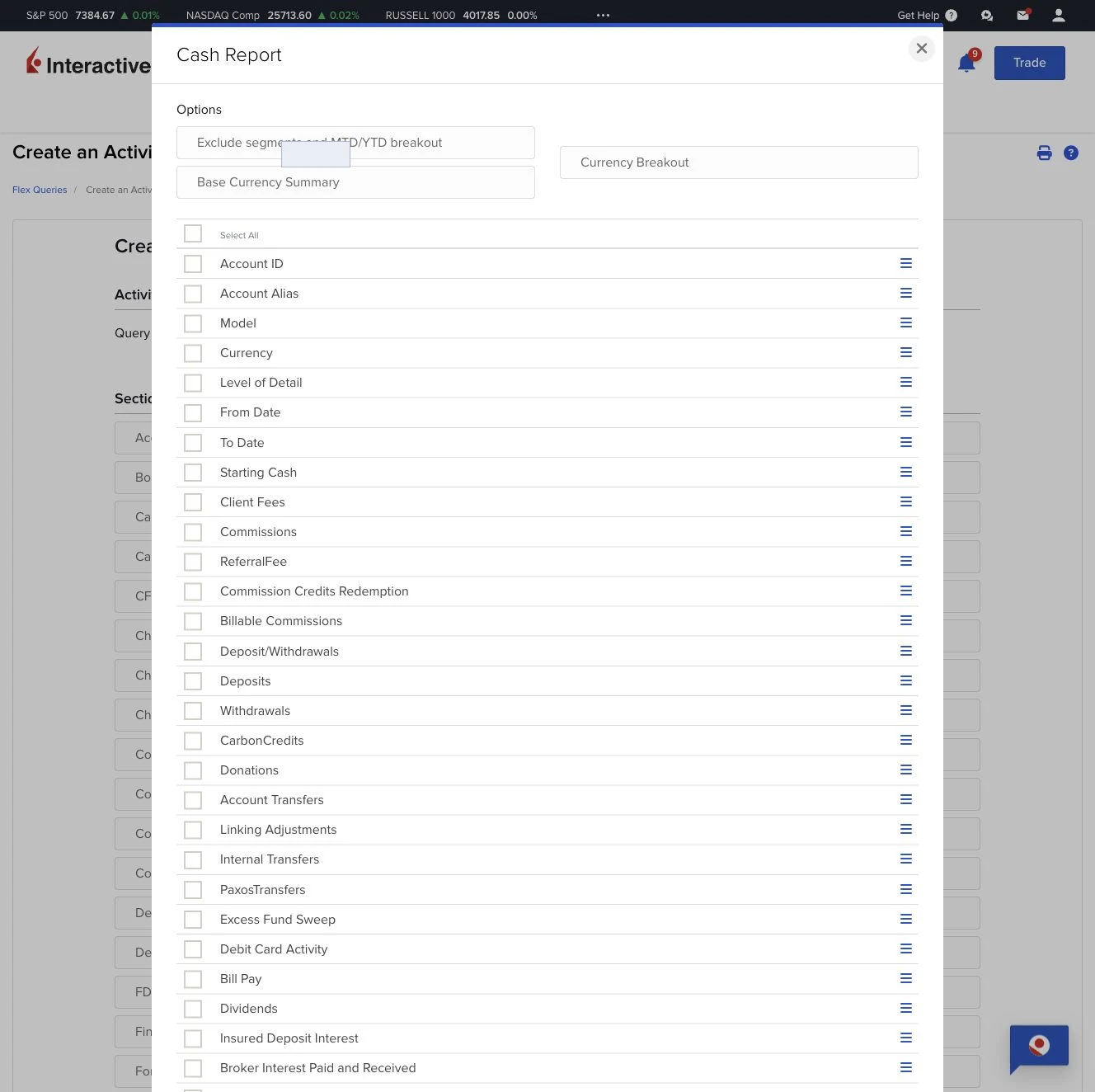
Select options before selecting all fields
Some sections have options above the fields table. Set those first, then use Select All. For example, Cash Report uses Currency Breakout.
Set delivery and general configuration
In Delivery Configuration, use Add/Edit Account(s) to select every account you want to track. Set Format to XML and Period to Last 365 Calendar Days. Then set the general configuration values listed above.
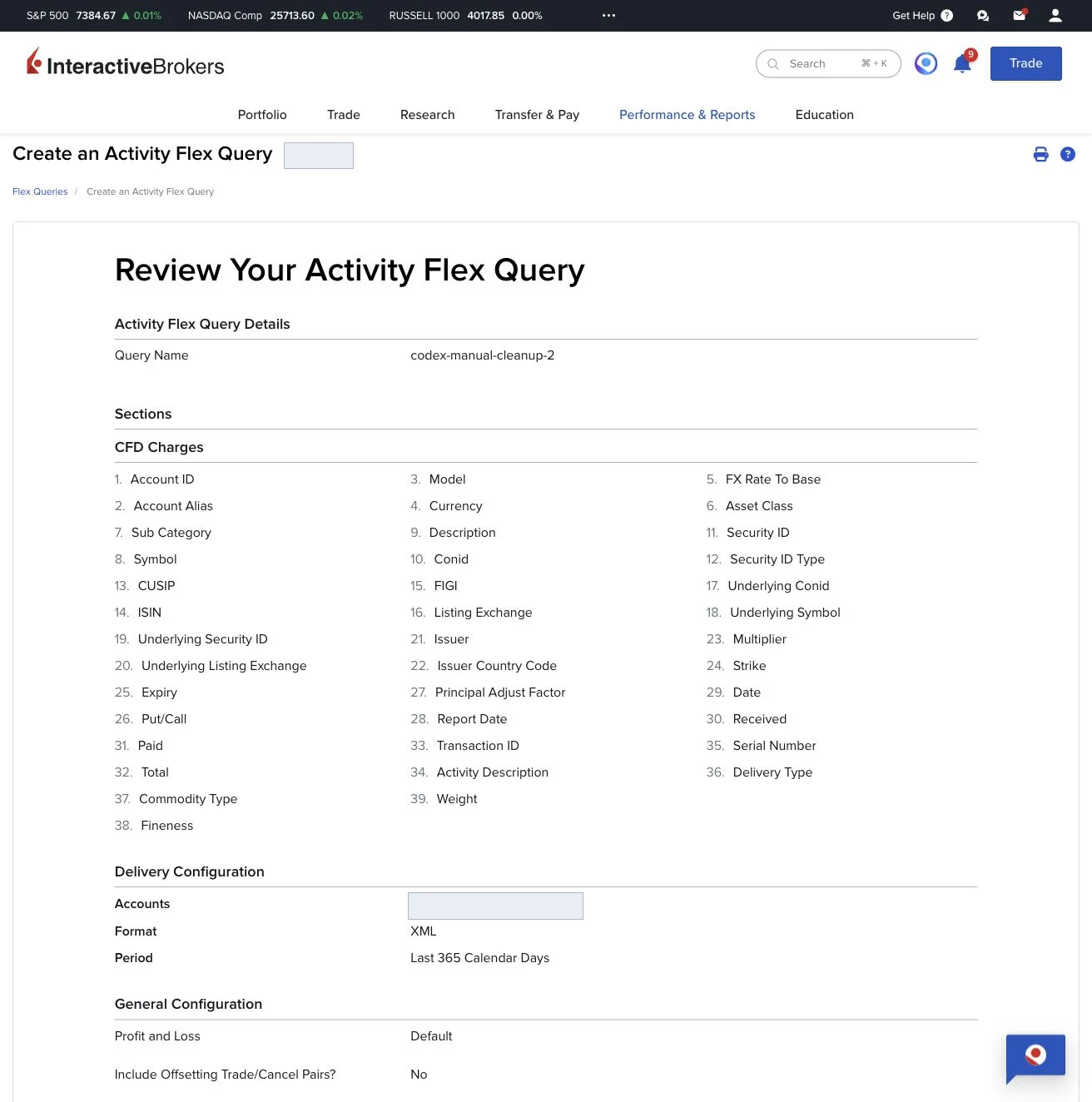
Review the query
Click the main form Continue button. Confirm the query name, selected sections, delivery settings, and general settings. The final button is labeled Create.
Create the query
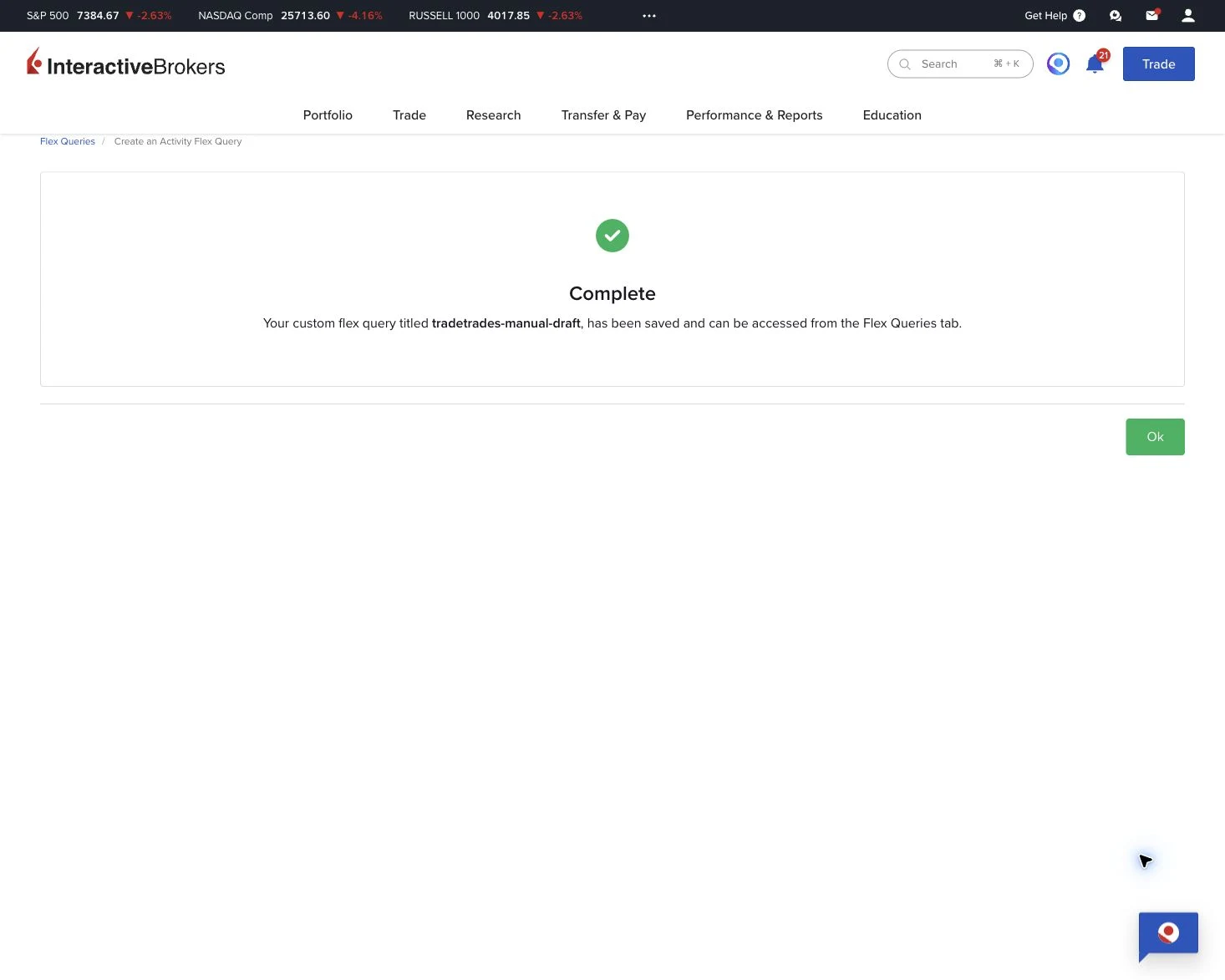
Click Create. IBKR will confirm the custom Flex Query was saved. When the query appears on the Flex Queries page, copy its Query ID. Compounding Wealth calls this the Flex report ID; keep it with the token you generate in Step 3.
Step 2Confirm Flex Web Service is enabledMake sure IBKR allows Flex reports to be fetched by the app.
Return to the Flex Queries page and confirm Flex Web Service Status shows Enabled. Compounding Wealth needs that web service access to read the Flex report.
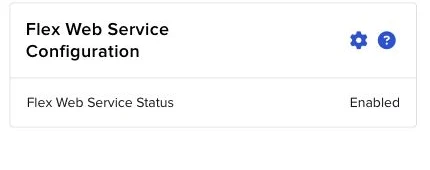
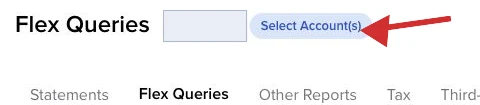
If you do not see the Flex Web Service Configuration box, use the blue Select Account(s) selector next to the Flex Queries title and select every account you want to track. Do this at the top of the Flex Queries page, not only inside the Activity Flex Query form.
Step 3Generate the Flex Web Service tokenCreate the token that Compounding Wealth will use to fetch your Flex Query.
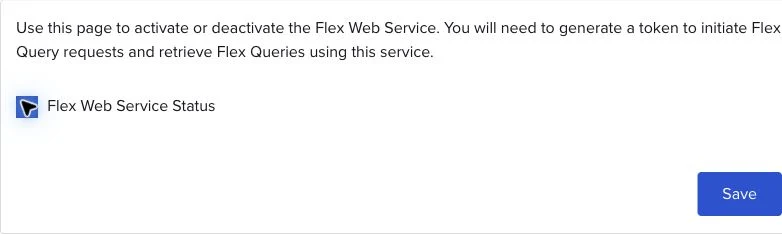
Open Configure Flex Web Service. If Flex Web Service Status is not already checked, check it and click Save.
In the Generate New Token section, set Expire After to 1 Year, leave Valid for IP Address blank, click Generate New Token, and then click Save.
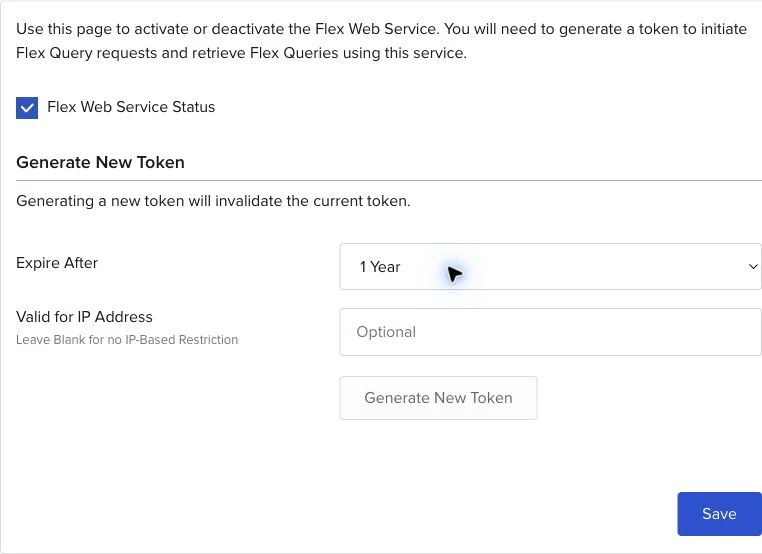
IBKR will show the generated token after saving. Write it down or copy it into your password manager immediately, alongside the Flex report ID from Step 1; you will need both when connecting Compounding Wealth. Do not share either value in support messages.